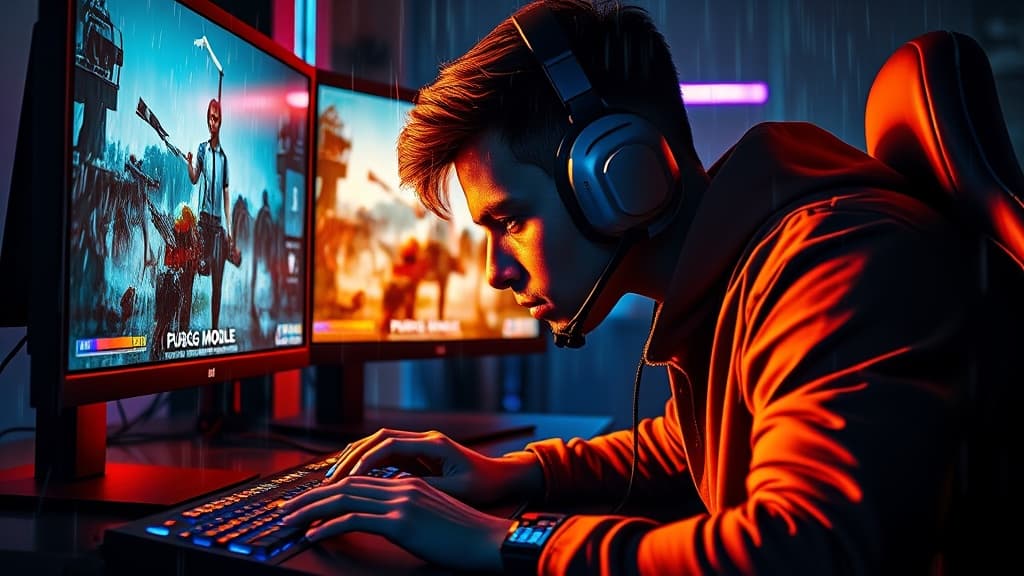
PUBG Mobile on PC — 最佳 Emulator Settings for Smooth 游戏性
最后更新: 2025年3月30日
Why Play PUBG Mobile on PC?
Playing PUBG Mobile on a PC emulator gives you access to keyboard and mouse controls, a larger display, and more consistent frame rates — all of which translate into a tangible competitive advantage in gunfights, recoil control, and long-range engagements. For players in Malaysia, Singapore, the Philippines, Indonesia, and across SEA, emulator play is extremely common, and the setup is straightforward once you know which settings to dial in.
That said, Tencent's matchmaking system detects emulator usage and places emulator players into separate lobbies. This means you will not be matched against pure mobile players unless a mobile player manually queues with an emulator user. Understanding how this works — and 如何 optimize your emulator — is essential for a smooth experience.
Choosing Your Emulator: GameLoop vs BlueStacks vs LDPlayer
Three emulators dominate the PUBG Mobile PC scene. Each has trade-offs worth understanding before you commit.
GameLoop is the official Tencent emulator, formerly known as Tencent Gaming Buddy. Because it is the official client, it receives the fastest compatibility updates after PUBG Mobile patches. It generally has the 最佳 anti-cheat integration and the lowest risk of account flags. The downside is that GameLoop can be resource-hungry, its interface feels dated, and customization options are more limited than competitors. If you want a hassle-free experience and do not mind a slightly clunky launcher, GameLoop is the safest choice.
BlueStacks is the most well-known Android emulator globally. BlueStacks 5 introduced a significant performance overhaul that reduced RAM usage and improved frame stability. It offers extensive keymapping tools, macro support, and multi-instance capability. However, BlueStacks is not officially endorsed by Tencent, and there have been rare reports of account restrictions when using it — though these are typically linked to third-party plugins rather than BlueStacks itself. For players who value customization and run multiple apps, BlueStacks is a 强 option.
LDPlayer is popular across SEA for its lightweight footprint and 强 performance on mid-range hardware. It runs well on systems with 4 GB of RAM and older processors, making it a practical choice if your PC is not high-end. LDPlayer also offers solid keymapping and 画面 settings. Like BlueStacks, it is not officially endorsed, so exercise caution with third-party add-ons.
Recommendation: Use GameLoop if your PC can handle it (8 GB RAM, dedicated GPU). Use LDPlayer if you are on a budget system. Use BlueStacks if you need multi-instance or plan to run other Android apps alongside PUBG Mobile.
Recommended Emulator Settings
Regardless of which emulator you choose, the following settings will give you the 最佳 balance of visual clarity and performance.
Resolution: Set the emulator resolution to 1920x1080 (Full HD). Higher resolutions look better but tank frame rates on mid-range hardware. If you are on a weaker system, 1280x720 is acceptable and will keep frames stable.
CPU and RAM Allocation: Allocate at least 4 CPU cores and 4 GB of RAM to the emulator. If your system has 16 GB of RAM and an 8-core processor, allocating 6 cores and 6 GB of RAM to the emulator will give you headroom for background processes without starving the emulator.
Rendering Backend: Use OpenGL if your GPU is from NVIDIA. Use DirectX if you are on an AMD or Intel integrated GPU. Test both — some systems perform better on one backend despite the general guidance. In GameLoop, this setting is under Engine > Rendering Mode. In BlueStacks, check Performance > 画面 Engine. In LDPlayer, look under Advanced Settings.
Frame Rate: Set the emulator's frame rate cap to 60 FPS. Some emulators allow 90 or 120 FPS, but PUBG Mobile itself caps at 60 FPS for most devices and configurations, so pushing the emulator beyond that provides no benefit and increases GPU load.
In-Game 画面 Settings
Once the emulator is configured, optimize the in-game settings within PUBG Mobile itself.
画面 Quality: Set to Smooth. This strips away unnecessary visual effects and gives you the cleanest view of enemies against terrain. Competitive players at every level use Smooth for this reason.
Frame Rate: Set to Extreme (60 FPS). If your system struggles, drop to Ultra (40 FPS) as a fallback, but Extreme should be your target.
Style: Use Colorful. This increases color saturation, making enemies in ghillie suits and dark clothing easier to spot against grass and terrain. Classic style looks more realistic but offers less visual contrast.
Anti-Aliasing: Turn this off. On an emulator running at 1080p, aliasing is already less noticeable than on a small mobile screen, and disabling it frees up GPU resources.
Shadows: Turn off. Shadows in PUBG Mobile do not cast from other players, so they provide zero tactical information and only consume performance.
Keymapping Setup
A good keymapping configuration is what makes emulator play feel natural. Here is a practical starting layout.
Movement: WASD for movement, Shift for sprint, C for crouch, Z for prone. This mirrors standard PC shooter controls and will feel immediately familiar.
Combat: Left mouse button for fire, right mouse button for ADS (aim down sights), Q and E for lean left and lean right, R for reload, G for grenade.
Inventory and Interaction: Tab for inventory, F for interact and pick up items, M for map, B for firing mode toggle.
Scoping: Mouse scroll wheel for zoom adjustment when scoped. Bind scope toggle to a side mouse button if your mouse has one.
Vehicles: Space for handbrake, Ctrl for horn. Keep WASD for vehicle movement — most emulators handle the transition automatically.
Spend ten minutes in the training grounds testing your keymaps before jumping into a ranked match. Adjust any bindings that feel awkward. The goal is zero hesitation — every action should be a reflex, not a thought.
Avoiding Emulator-Only Lobbies
Tencent's system automatically detects emulator usage and routes you into emulator-matched lobbies. You cannot bypass this — and attempting to do so through spoofing tools risks a permanent ban. However, there are legitimate considerations to keep in mind.
Emulator lobbies tend to have longer queue times, especially at off-peak hours. If you are playing from SEA, peak hours are typically 8 PM to midnight local time (GMT+8). Queuing during these windows significantly reduces wait times.
If you queue as a squad with mobile players, the entire squad enters emulator lobbies. Make sure your mobile teammates understand this before they join your party — they will face keyboard-and-mouse opponents and may have a difficult time.
Solo and duo queues in emulator lobbies are less populated than squads. If queue times are long, switching to squad mode (even with random teammates) usually results in faster matches.
SEA Server Selection and Network Optimization
PUBG Mobile assigns you to a server based on your selected region. For SEA players, the relevant servers are Asia and KRJP (Korea/Japan). The Asia server is the default for most SEA countries and offers the largest player pool. KRJP can provide lower ping for players in the northern part of SEA but has a smaller emulator player base.
To minimize latency on an emulator, close all bandwidth-consuming applications — streaming services, cloud syncs, Windows Update. Use a wired Ethernet connection instead of Wi-Fi whenever possible. A stable 20-30ms ping is achievable from most Malaysian and Singaporean connections to the Asia server. Players in the Philippines and Indonesia may see 40-60ms, which is still entirely playable.
If your ping fluctuates, check whether your ISP is throttling gaming traffic. Some SEA ISPs route gaming packets inefficiently. A reputable gaming VPN like ExitLag or Mudfish can sometimes reduce ping by routing through optimized paths, though results vary by ISP and location. Test with and without a VPN to see which gives you more consistent performance.
Final Checklist
Before your first ranked match on emulator, confirm these points. Emulator resolution is set to 1080p or 720p. CPU and RAM allocation matches your system's capacity. In-game 画面 are set to Smooth, Extreme frame rate, Colorful style. Keymapping is tested and comfortable. No unnecessary background applications are running. You are queuing during SEA peak hours for the shortest wait times. Following this setup will give you a stable, responsive PUBG Mobile experience on PC that lets you focus on improving your 游戏性 rather than fighting your settings.