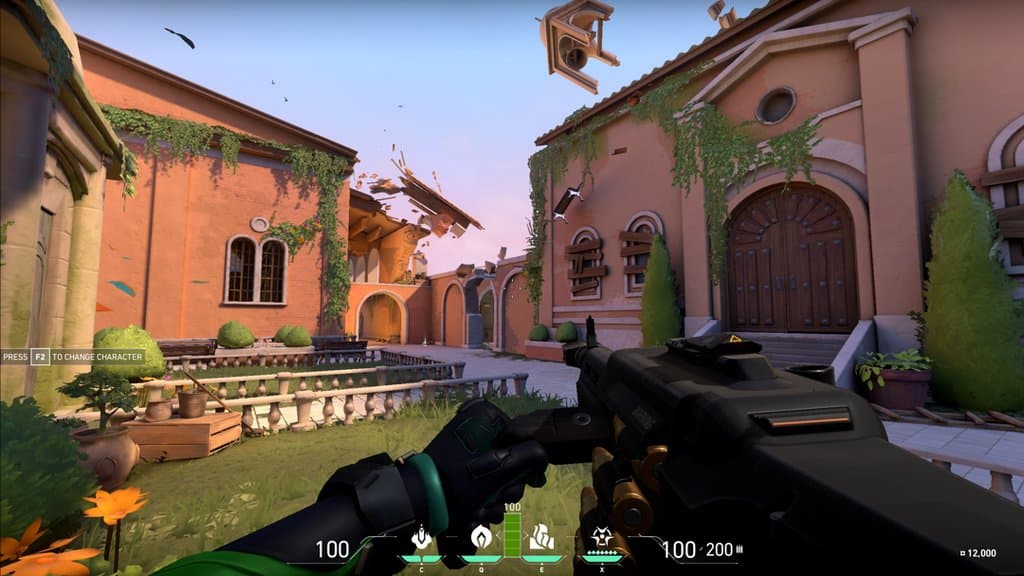
Valorant 低階 PC 最佳設定 — 60+ FPS 指南
最后更新: 2025年3月30日
Valorant 最低與建議配備
Valorant 原本就設計成可以在各種硬體上運行,這也讓它成為 Malaysia 和 Southeast Asia 預算玩家最容易入坑的 competitive shooter 之一。以下是官方最低配備:
- CPU: Intel Core 2 Duo E8400 / AMD Athlon 200GE
- GPU: Intel HD 4000 / Radeon R5 200
- RAM: 4 GB
- Storage: 25 GB 可用空間
- OS: Windows 10 64-bit
如果你的 PC 達到這些規格,就可以跑 Valorant。問題是你能不能在 gunfight 和 ability 使用期間穩定維持 60+ FPS。這篇 guide 就是要解決這個問題。
最大化 FPS 的最佳 Video Settings
以下是 Settings > Video > General 裡,對低階系統最重要的設定。
- Display Mode: Fullscreen(不要用 Windowed 或 Borderless)。Fullscreen 讓你的 GPU 專注處理 rendering,在預算硬體上可以多出 5-15 FPS。
- Resolution: 先用你 monitor 的 native resolution。如果無法穩定 60 FPS,就降到 1280x720。在 Intel UHD 630 這類很弱的 GPU 上,甚至可以試 1024x768。
- Limit FPS: 設為 "On",並鎖在你的目標值(60 或 75,配合 monitor refresh rate)。FPS cap 可以避免 frame time spike,也能降低 GPU 溫度,對散熱不好的 laptop 特別重要。
- NVIDIA Reflex Low Latency: 如果你有 NVIDIA GPU,設為 "On"。低階硬體不要用 "On + Boost",因為會增加耗電。
Graphics Quality Settings Breakdown
在 Settings > Video > Graphics Quality 裡,全部照以下設定:
| Setting | Recommended | Why | |---|---|---| | Material Quality | Low | 大幅降低 VRAM 使用量 | | Texture Quality | Low | 對 integrated GPUs 的 FPS 影響最大 | | Detail Quality | Low | 移除額外環境物件 | | UI Quality | Low | 降低 HUD rendering 負擔 | | Vignette | Off | 純視覺效果,對 gameplay 零價值 | | VSync | Off | 會增加 input lag — competitive 絕對不要開 | | Anti-Aliasing | None 或 MSAA x2 | MSAA x4 對 budget GPUs 太重 | | Anisotropic Filtering | 1x | 1x 和 16x 的視覺差異很小 | | Improve Clarity | On | 幾乎不影響 FPS,但能讓畫面更清晰 | | Experimental Sharpening | Off | 某些 driver 上會和 Improve Clarity 衝突 | | Bloom | Off | 不必要的視覺效果 | | Distortion | Off | 移除 ability distortion effects | | Cast Shadows | Off | 在低階硬體上可省 5-10 FPS |
全部設為 Low 或 Off 後,多數 budget 系統相較 default settings 會看到 30-50% 的 FPS 提升。
Resolution Scaling 與 Render Scale
Valorant 沒有像某些遊戲那樣內建 render scale slider。你的選項是:
- 啟動遊戲前降低 desktop resolution
- 使用遊戲內 dropdown 的 resolution options
- 透過 NVIDIA Control Panel 或 AMD Radeon Software 使用 GPU scaling
對 1080p monitor 玩家來說,降到 900p(1600x900)是最好的中間點。畫面仍然清楚,crosshair 依然銳利,而且大約可以多拿 20-30% FPS。降到 720p 性能會更好,但遠距離 enemy model 會開始變模糊。
Agent-Specific Performance Tips
有些 agents 會因為 abilities 導致更多 FPS drops:
- Viper 和 Harbor 的 wall abilities 在低階 PC 上可能讓 FPS 掉 10-20。如果你 main 這些 agents,或常常對上他們,建議再把 settings 調低。
- Brimstone 和 Phoenix 的 molly 與 fire effects 算是中等吃效能。保持 Distortion off。
- Omen 和 Astra 的 cosmic effects 意外地很輕。
- Sova 和 Fade 的 recon abilities 對 FPS 影響很小。
如果你注意到特定 ability 使用時 FPS drops,通常是 Distortion 和 Bloom settings 在搞事。確保兩個都關掉。
SEA Servers 的 Network Settings
對 Malaysia、Singapore、Indonesia 和 Philippines 玩家來說,network optimization 跟 FPS 一樣重要。Valorant 主要連接位於 Singapore 和 Hong Kong 的 SEA servers。
- Malaysia 預期 ping: 到 Singapore servers 5-30ms,到 Hong Kong 40-80ms
- Indonesia 預期 ping: 到 Singapore 15-50ms
- Philippines 預期 ping: 到 Singapore 30-70ms,到 Hong Kong 20-50ms
要優化你的 network settings:
- 盡可能使用 wired Ethernet connection,不要用 WiFi。WiFi 會增加 5-20ms jitter。
- 在 Valorant settings 裡,啟用 Network Buffering: Minimum。這會降低 input delay,但 movement interpolation 會稍微沒那麼順。
- 關掉所有 background applications — Discord screen sharing、YouTube、Twitch streams 和 Windows Update 都會吃 bandwidth。
- 如果你使用 TM Unifi 或 Maxis Fibre,確保 DNS 設為 1.1.1.1 或 8.8.8.8,不要用 ISP default。這可以降低 initial connection time。
- 不要為 SEA servers 使用 VPN。VPN 只有在你 route 到遠距離 region 時才可能有幫助。
Launch Options 與 Startup Optimization
透過 Riot Client 為 Valorant 加入以下 launch options:
- 打開 Riot Client > Valorant > Settings(gear icon)> Game-specific settings
- Riot Client 沒有直接的 launch command line,但你可以修改 shortcut:
- 右鍵點 Valorant shortcut > Properties
- 在 Target 加上:
-novid來跳過 intro videos
額外的 Windows-side tweaks:
- Disable fullscreen optimizations: 右鍵點 VALORANT.exe > Properties > Compatibility > 勾選 "Disable fullscreen optimizations"
- Task Manager 裡設 High priority: 遊戲中打開 Task Manager,找到 VALORANT.exe,右鍵 > Set Priority > High(不要設成 Realtime)
- Game Mode: 在 Settings > Gaming 啟用 Windows Game Mode。在 Windows 10/11 上,這真的有幫助,因為可以防止 gameplay 期間 background updates。
Budget PCs 的 Windows Optimization
這些 system-level changes 對低階硬體真的有差:
- Disable hardware acceleration 在 Chrome、Discord 和 Spotify 裡關掉。這些都會偷用 GPU resources。
- **將 Power Plan 設為