Running a 6GB or 8GB GPU? This Windows Setting Could Be Eating Valuable VRAM
A Windows graphics setting designed to reduce scheduling overhead could be taking up memory your GPU needs for games. If your graphics card has just 6GB or 8GB of VRAM, that trade-off is worth a closer look.
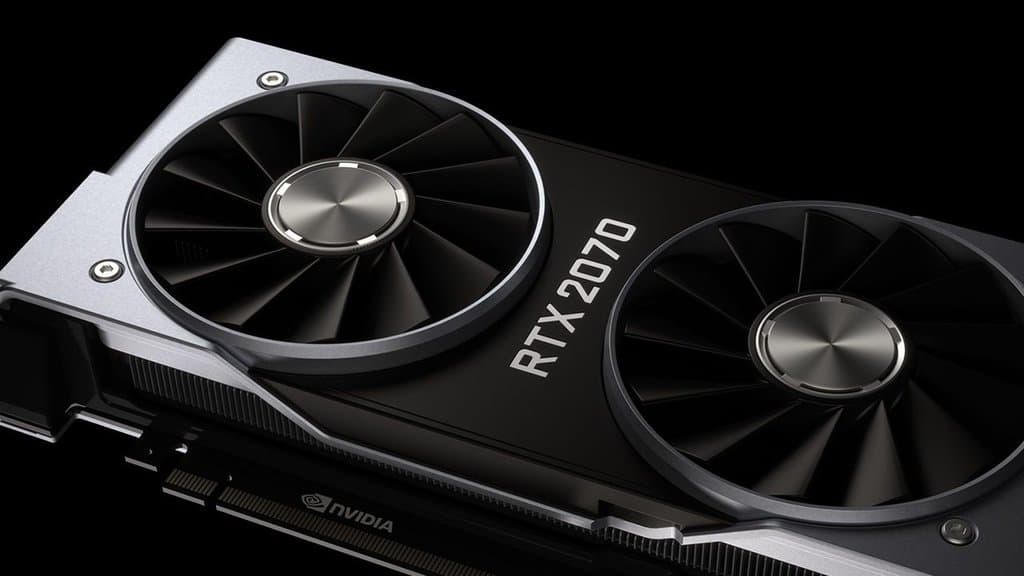
Engadget highlights testing by XDA Developers in which disabling hardware-accelerated GPU scheduling, usually shortened to HAGS, recovered almost 950MB of VRAM on an 8GB Nvidia RTX 2070 Super. Frame rates fell by three to five FPS, but textures in Cyberpunk 2077 and Stellar Blade stopped stuttering and loaded correctly.
That is not proof everyone should switch it off. It is a useful reminder that a higher FPS number does not always tell the whole story.
What does HAGS actually do?
Games and other applications send work to your graphics card, and that work needs organising. Before HAGS, a high-priority CPU thread handled the coordination.
Microsoft introduced HAGS with a Windows 10 update in May 2020. It lets dedicated hardware on the GPU take over much of that scheduling work, although Windows still controls application priority.
The aim is to reduce CPU scheduling overhead and associated delays. However, Microsoft cautioned at launch that users should not expect a major visible difference, because games already had ways of masking those costs.
There is also an important feature dependency: DLSS Frame Generation requires HAGS. Disabling scheduling therefore means giving up that feature on systems that support it.
Why a small memory saving can matter
Almost a gigabyte of recovered VRAM is a very different proposition on an 8GB card than on a 16GB model.
In the XDA test, accepting a modest frame-rate reduction gave the game more room for its graphics data. The practical improvement was in texture loading and stuttering rather than headline FPS.
Analysis: For Malaysia and SEA readers weighing up PC troubleshooting options, this makes HAGS worth testing before assuming an upgrade is the only answer. The relevant factors are your card’s memory capacity and the games you play—not where you live. The reported result does not establish that every 6GB or 8GB GPU will recover the same amount of memory.
Older benchmarks also suggest the performance benefit is not automatic. Tom’s Hardware tested an RTX 2080 Ti and GTX 1050 in 2020 and measured average changes ranging from a 0.73% decrease to a 0.06% increase. Gamers Nexus found no significant gains across its tested games, alongside a repeatable 2.4% decline in F1 2019 with a four-core Intel Core i3.
Those are historical results, not a guarantee for today’s games or drivers.
How to check your own setup
Engadget lists the Windows settings path as:
Settings → System → Display → Graphics → Advanced graphics settings
Find the HAGS toggle and check its current state rather than assuming it is enabled. The report notes uncertainty around whether Windows 11 universally turns it on by default.
To make the comparison useful:
- Benchmark the same game scene with your current settings.
- Change the HAGS setting and restart your PC.
- Repeat the test without changing resolution or graphics quality.
- Compare texture behaviour and stuttering as well as FPS.
OBS also recommends disabling HAGS when troubleshooting recording or streaming problems.
Test it, don’t treat it as a universal fix
Engadget’s guidance is to consider leaving HAGS enabled on cards with at least 12GB of VRAM, particularly when using frame generation. For 6GB and 8GB cards, testing individual games is the more sensible approach.
Analysis: If a game is already squeezing your VRAM, smoother texture delivery may be worth sacrificing a few frames. If nothing improves—or you need DLSS Frame Generation—there is little reason to keep it disabled. Let your own results decide.