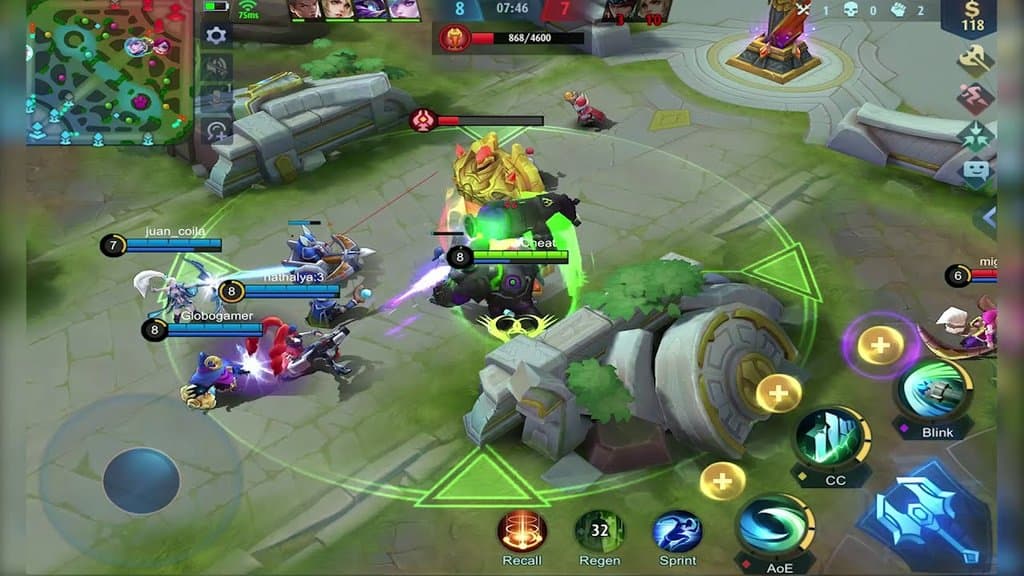
Mobile Legends Bang Bang Low-End PC Settings Guide: Best Emulator Setup for Budget Rigs
Last Updated: Invalid Date
Mobile Legends Bang Bang Low-End PC Settings Guide: Best Emulator Setup for Budget Rigs
Mobile Legends Bang Bang is still the king of the hill across Malaysia, Indonesia, and the Philippines, but not everyone is playing it on a fancy gaming phone. A lot of players in SEA are grinding ranked on old office PCs, budget laptops, or second-hand desktops with Intel integrated graphics and just enough RAM to survive.
That setup can absolutely work. MLBB is not a heavy game by modern standards, but emulators can be surprisingly demanding if you leave everything on default. The problem usually is not Mobile Legends itself. It is the emulator eating too much CPU, too much RAM, or running on settings that make no sense for low-end hardware.
If your matches feel stuttery, your controls feel delayed, or your laptop turns into a toaster after two games, this guide covers the best MLBB low-end PC settings for the emulators SEA players actually use: BlueStacks, LDPlayer, and NoxPlayer.
What counts as a low-end PC for MLBB?
For this guide, we are talking about setups like:
- Intel Core i3 4th to 8th gen
- Intel Pentium or older i5 laptops
- 4GB to 8GB RAM
- Intel HD Graphics, UHD Graphics, or older Radeon integrated graphics
- cheap SSD or older hard drive
- 60Hz monitor, often 1366x768 or 1080p
That still describes plenty of student laptops and budget home desktops around SEA. If that is your machine, the goal is not ultra visuals. The goal is stable controls, smooth team fights, and consistent frame pacing.
First rule: optimise Windows before blaming the emulator
Before touching BlueStacks or LDPlayer settings, clean up the PC first.
Do these basic fixes:
- close Chrome tabs, Discord overlays, and other background apps
- restart the PC before a long ranked session
- switch Windows power mode to Best Performance if you are plugged in
- update Intel graphics drivers if your machine supports newer ones
- keep at least 10GB to 15GB free storage space
- install the emulator on an SSD if possible
A lot of “MLBB lag” on low-end PCs is really a RAM or storage problem. If Windows is already choking before you launch the game, the emulator will make it worse.
Best general emulator settings for low-end PCs
No matter which emulator you use, these are the safest baseline settings:
- CPU allocation: 2 cores
- RAM allocation: 2048MB to 3072MB
- Resolution: 1280x720
- DPI: 160 or 240
- Frame rate: 60 FPS if stable, otherwise 30 FPS
- Graphics renderer: Performance mode or DirectX/OpenGL depending on which is smoother
- ASTC textures: Disabled
- Anti-aliasing: Disabled
- V-Sync: Off unless screen tearing is terrible
The biggest mistake low-end PC players make is giving the emulator too many resources. On a weak machine, setting 4 cores and 4GB RAM does not magically improve performance. It often makes Windows fight harder for resources and causes even more stutter.
BlueStacks settings for low-end PCs
BlueStacks is still one of the easiest emulators to recommend because it is polished and widely used, but the default setup can be bloated on cheap hardware.
Best BlueStacks settings for MLBB
Under Performance:
- Performance mode: Low Memory or Balanced
- CPU cores: 2
- Memory: 2048MB
- Frame rate: 60 if stable, otherwise cap at 30
- Enable high frame rate: On only if your PC can hold it
Under Display:
- Resolution: 1280x720
- Pixel density: 160 DPI
Under Graphics:
- Graphics engine mode: Compatibility mode if Performance mode causes glitches
- Graphics renderer: Try DirectX first on older Intel HD systems, OpenGL if DirectX stutters
- Interface renderer: Auto
- ASTC textures: Disabled
- Prefer dedicated GPU: Off if you only have integrated graphics anyway
Why BlueStacks can feel heavy
BlueStacks tends to run extra services and visual polish that older laptops do not love. If you are on only 4GB RAM, it can still work, but you need to keep the configuration lean. If BlueStacks feels sluggish even after optimisation, LDPlayer often performs better on weaker hardware.
LDPlayer settings for low-end PCs
For budget rigs, LDPlayer is usually the sweet spot. It is lighter than BlueStacks on many older Intel systems and often gives more stable FPS with fewer background extras.
Best LDPlayer settings for MLBB
Under Advanced:
- CPU: 2 cores
- RAM: 2048MB
- Resolution: 1280x720
- DPI: 160
- Model: Default phone profile is fine
Under Game settings or display options:
- FPS: 60 if stable, 30 if your CPU spikes often
- Enable high FPS: Only if your team fights stay smooth
- Graphics rendering mode: OpenGL first, DirectX if OpenGL shows weird input delay
- Vertical sync: Off
Why LDPlayer works well for MLBB
MLBB does not need extreme hardware. It needs responsive controls and predictable frame delivery. LDPlayer usually does a good job of staying out of the way on older CPUs, which is why a lot of budget PC café and home users around SEA prefer it.
If you have a dual-core laptop or an old Intel UHD machine, LDPlayer is often the safest first option.
NoxPlayer settings for low-end PCs
NoxPlayer is still usable, but it can be less consistent on older systems compared with LDPlayer. It is worth trying if you already have it installed, but I would not call it the first choice for genuinely weak hardware.
Best NoxPlayer settings for MLBB
- CPU: 2 cores
- RAM: 2048MB
- Resolution: 1280x720
- Performance settings: Low or custom low-resource profile
- Graphics rendering: OpenGL+ or DirectX mode, whichever feels smoother
- Frame rate: 30 first, then test 60
- Shadows and extra visual features: Off
When Nox makes sense
If your system handles Nox cleanly already, you can stay with it. But if you are troubleshooting fresh, BlueStacks and LDPlayer are usually the stronger options for MLBB in 2026.
Best in-game MLBB settings for low-end PC emulator users
Once the emulator is tuned, do not ruin it with heavy in-game settings.
Inside Mobile Legends, use:
- Graphics: Smooth
- Frame Rate: High or Super only if stable
- HD Mode: Off
- Shadow: Off
- Outline: Off if you need extra performance
- Creep HP display: On
- Damage text: Basic or reduced if clutter bothers you
For ranked, smooth gameplay matters more than prettier effects. A stable team fight around Turtle or Lord is worth more than better water reflections you will never notice mid-match.
Best settings for Intel integrated graphics
This is where a lot of SEA players live: old Lenovo laptops, Acer Aspire machines, Dell office PCs, or mini desktops with Intel HD Graphics 4000, 520, 620, UHD 600, UHD 620, and similar chips.
If that is your setup:
- keep the emulator at 720p
- disable every extra graphics enhancement
- do not run 60 FPS unless it is actually stable
- use Performance mode in Windows power settings
- plug in the charger on laptops to avoid aggressive CPU throttling
- use one emulator instance only, never multi-instance
If your PC is on 4GB RAM, you should also close Steam, browsers, and update services before playing. MLBB itself is light. Emulation overhead is the real enemy.
30 FPS vs 60 FPS: which should low-end players choose?
A lot of players think 60 FPS is mandatory. It is nice, but unstable 60 is worse than clean 30.
Choose 60 FPS only if:
- lane movement stays smooth
- skill aiming does not feel delayed
- team fights around objectives do not spike or freeze
- your laptop does not overheat after two matches
Choose 30 FPS if:
- your CPU usage keeps spiking to 90% or higher
- frame drops happen during clashes
- your old laptop gets hot and throttles hard
- your inputs feel muddy after 15 to 20 minutes
On a weak PC, stable 30 with clean keymapping is still perfectly playable for ranked.
Best keymapping setup for competitive advantage
This is one reason some players prefer MLBB on PC emulators: cleaner mechanical inputs.
A practical keymapping setup looks like this:
- WASD: movement
- Q: Skill 1
- E: Skill 2
- R: Ultimate
- D or F: Battle spell
- 1 / 2 / 3: Equipment actives if needed
- Space: Basic attack
- B: Recall
- C: Regen or utility button
- Mouse drag: skill aiming
Keymapping tips that actually help
- keep your main skill buttons close together
- do not overcomplicate the layout with too many secondary keys
- make sure your ultimate is on a button you will not misclick under pressure
- use locked movement instead of weird hybrid setups if you are new to emulator play
If you play marksman or mage, accurate mouse skill aiming can feel better than touch once you get used to it. For assassins and fast combo heroes, keep the layout simple so execution stays reliable.
Heroes that feel better on emulator
Some hero types benefit more from PC controls than others.
Usually good on emulator:
- mages with aimed skillshots
- marksmen who need consistent kiting
- poke supports
- some assassins with clean combo timing
Usually less comfortable for new emulator players:
- highly mobile assassins with many directional dashes
- heroes that need very fast touch-style camera flicks
- heroes where you rely on muscle memory from mobile controls
If you are switching from phone to emulator, do not force your hardest hero first. Test a comfortable mage or marksman in Classic before jumping into ranked.
Common low-end PC mistakes
Running the emulator at 1080p
That looks nicer in the menu and feels worse in real matches.
Giving the emulator too much RAM
If Windows needs memory too, both sides lose.
Using high in-game graphics because “MLBB is lightweight”
Yes, the game is light. The emulator layer is not.
Leaving 60 FPS on when your machine clearly cannot hold it
Fake smoothness is not smoothness.
Playing while plugged out on a weak laptop
Battery mode often cuts performance hard.
Recommended setup by hardware tier
4GB RAM old laptop
- LDPlayer preferred
- 2 cores, 2048MB RAM
- 720p, 160 DPI
- 30 FPS cap
- MLBB on Smooth graphics
8GB RAM budget office desktop
- BlueStacks or LDPlayer
- 2 cores, 2048MB to 3072MB RAM
- 720p
- 60 FPS if stable
- Smooth graphics, shadows off
Intel UHD laptop with SSD
- LDPlayer first, BlueStacks second
- 2 cores, 2048MB RAM
- 720p
- test both OpenGL and DirectX
- use whichever gives fewer team-fight drops
Final verdict
If you want the best MLBB low-end PC experience in SEA, the formula is simple: use a light emulator, keep the resolution at 720p, cap resources sensibly, and prioritise stable frame rate over flashy visuals.
For most budget PCs, LDPlayer is the easiest first recommendation. BlueStacks is still good if tuned properly. NoxPlayer can work, but it is less convincing on older hardware.
The real competitive edge is not pretending your old laptop is a gaming beast. It is building a setup that stays responsive during real ranked matches. On MLBB, that is what actually wins stars.