Roblox Best Settings for Low-End Laptops in Malaysia 2026
Last Updated: Invalid Date
Roblox Best Settings for Low-End Laptops in Malaysia 2026
Roblox can run on many machines, but “can run” and “runs smoothly” are two very different things. If you’re playing on an older school laptop, family laptop, budget office notebook, or hand-me-down machine, Roblox can feel choppy fast: low FPS, delayed inputs, fan screaming like ranked match overtime, and games taking forever to load.
This guide is for Malaysian players using low-end laptops who just want Roblox to feel playable without needing a new setup. Before changing anything, check Roblox’s official computer hardware and operating system requirements because device advice should always match Roblox’s own guidance Roblox Support hardware and OS requirements. For installation, use Roblox’s official download flow only Roblox download page.
Below: the best low-end settings, step-by-step setup, what screenshots to add later, and the common mistakes that quietly destroy performance.
The Main Problem: Roblox Is Light, But Roblox Experiences Are Not Equal
Roblox itself may look simple, but each Roblox experience can be very different. Some games use big maps, lots of lighting, effects, physics, cosmetics, vehicles, or many players on-screen. That’s why one Roblox game feels smooth, then another turns your laptop into a slideshow.
Low-end laptop players usually struggle with:
- Low FPS or stuttering
- Slow loading into experiences
- Laggy camera movement
- Delayed controls
- Laptop overheating
- Browser tabs eating RAM in the background
- Wi-Fi instability during busy hours
The goal is simple: reduce what your laptop has to render, keep Roblox cleanly installed, and remove background nonsense.
Step 1: Install Roblox the Clean Way
First, don’t download random “FPS booster Roblox client” files. Big no. Use the official route.
- Go to the official Roblox download page: Roblox download page
- Download Roblox through the official flow.
- Install it normally.
- Launch Roblox from the installed app/client after joining an experience.
- Keep your laptop updated enough to meet Roblox’s official requirements: Roblox Support hardware and OS requirements
Screenshot to add later: Roblox official download page and installer prompt.
Why this matters
Low-end laptops already have limited headroom. If you install shady launchers, “unlockers,” or fake boosters, you risk malware, account issues, and worse performance. Clean install first, then optimise.
Step 2: Lower Roblox Graphics Settings
Once you’re inside a Roblox experience:
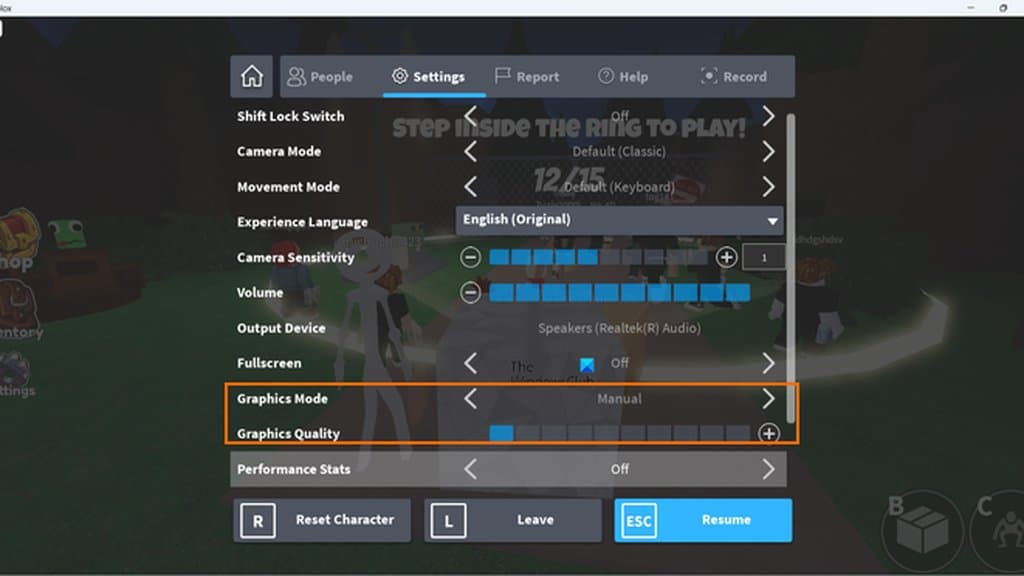
- Press Esc
- Open Settings
- Look for Graphics Mode
- Change it from automatic to manual if available
- Lower the Graphics Quality slider
- Resume the game and test movement
For weak laptops, start at the lowest graphics setting first. If the game feels too ugly but smooth, increase one step at a time until it starts stuttering again. Then go back down one level. That’s your sweet spot.
Screenshot to add later: Roblox in-game settings menu showing Graphics Mode and Graphics Quality.
Step 3: Use Fullscreen or a Smaller Window
If your laptop struggles, try both:
- Fullscreen: Can feel smoother on some systems because the game gets focus.
- Smaller window: Can reduce rendering load because Roblox displays fewer pixels.
There is no universal winner here. Test both for the specific Roblox experience you play most. If you mostly play obbies, simulators, roleplay games, or shooters, performance can vary a lot between them.
Quick test method:
- Play for 3 minutes in fullscreen.
- Play for 3 minutes in windowed mode.
- Pick the one with fewer stutters.
Step 4: Close Background Apps Before Playing
This is the boring advice that actually works.
Before launching Roblox, close:
- Chrome tabs you don’t need
- Discord streams
- Spotify if your laptop is struggling
- Video calls
- Game launchers
- Cloud sync apps if they are actively uploading/downloading
- Other games, obviously bro
Low-end laptops often run out of memory before they run out of enthusiasm. If your browser has 20 tabs open, Roblox will suffer.
Step 5: Plug In Your Laptop
Many laptops reduce performance on battery to save power. If you want smoother Roblox:
- Plug in the charger
- Use your laptop’s balanced or performance power mode if available
- Avoid playing when battery is very low
- Keep the laptop on a hard surface, not a pillow or blanket
Heat is the silent FPS killer. If your laptop gets too hot, it may slow itself down.
Step 6: Improve Connection Stability
Roblox performance is not only graphics. A smooth game still feels bad if your connection keeps spiking.
Try these:
- Sit closer to the router
- Use 5GHz Wi-Fi if your laptop and router support it
- Avoid downloading large files while playing
- Pause cloud backups
- If possible, use Ethernet via adapter
- Restart the router if the connection has been unstable all day
Do not confuse low FPS with internet lag:
- Low FPS = game looks choppy, camera feels rough
- Internet lag = players teleport, hits delay, actions register late
Different problem, different fix.
Recommended Low-End Roblox Settings
Use this as your starting preset:
Graphics
- Graphics Mode: Manual, if available
- Graphics Quality: Lowest or near-lowest
- Fullscreen: Test both on/off
- Shadows/effects: Keep low through graphics slider
Laptop Setup
- Charger plugged in
- Close unnecessary apps
- Hard surface for cooling
- Browser tabs reduced
- Restart laptop if it has been running for days
Connection
- Strong Wi-Fi signal
- No heavy downloads
- Router nearby
- Ethernet if available
Pro Tips for Low-End Laptop Players
Pick lighter experiences
Some Roblox games are simply heavier. If your laptop struggles badly in one experience but runs fine in another, your laptop may not be the only issue. Choose games with smaller maps, fewer effects, or simpler visuals when you want a smoother session.
Restart before long sessions
If Roblox starts smooth but gets worse after a while, restart your laptop before playing. It clears background clutter and gives you a cleaner session.
Keep expectations realistic
A low-end laptop will not magically become a gaming PC. The goal is stable and playable, not ultra graphics. Smooth beats pretty, especially in fast games.
Don’t use random “FPS booster” downloads
If a tool promises miracle Roblox performance, be careful. Stick to official Roblox installation and normal laptop maintenance.
Common Mistakes to Avoid
- Leaving graphics on high because “Roblox looks simple”
- Playing with 30 browser tabs open
- Running Roblox on battery while expecting maximum performance
- Ignoring heat and blocking laptop vents
- Downloading unofficial Roblox clients or boosters
- Blaming Wi-Fi when the issue is actually low FPS
- Blaming FPS when the issue is actually connection lag
Safety Notes for Younger Players and Shared Laptops
If the laptop is shared with siblings or family, keep things simple:
- Install Roblox only through the official download page
- Avoid third-party launchers
- Don’t save passwords on shared browsers unless you trust the device setup
- Log out if using a public or shared machine
- Be careful with links shared in chats or outside Roblox
For parents or guardians helping set up a laptop, the safest first step is still the official Roblox download flow and checking Roblox’s official device requirements.
Malaysia/SEA Notes
This guide is written for Malaysian players, but the allowed official sources here do not provide Malaysia-specific pricing, server, or local availability details beyond Roblox’s official download and computer requirements pages. So instead of inventing numbers, the practical advice is: optimise the laptop, install Roblox cleanly, and stabilise your connection.
For most low-end setups, the biggest wins are still free:
- Lower graphics.
- Close background apps.
- Plug in the laptop.
- Improve Wi-Fi stability.
- Avoid unofficial tools.
Final Recommended Setup
If you only do one thing, do this:
- Install from the official Roblox download page
- Check your device against Roblox’s official requirements
- Set graphics quality to low
- Plug in your laptop
- Close background apps
- Play near the router
That’s the clean, safe, no-nonsense setup. Not glamorous, but it works — and for low-end Roblox gaming, smooth gameplay is the real flex.